| |
You can do almost any kind of painting, and editing on
one layer without affecting any of the other layers, and
that’s where their power lies. Even effects, and image adjustments
can be applied to a copy image on its own layer, and therefore,
can also be deleted without disturbing the underlying image
if you don’t like the effect.
It’s not hard to learn how to use layers, and there are
at least as many things that you can do with them as you
have time to spend playing with your computer. It is beyond
the scope of my one page of instruction to even begin to
go into all the layers features and options available. Read
your manual, use the online help in Photoshop, and experiment.
An excellent way to get a little bit of a feel for what
can be done with layers is to look at one of the sample
images that is installed with Elements (unless you deselected
it in a custom install). Try looking at the Carp.psd , or
Working.psd images, found in C:\Program Files\Adobe\Photoshop
Elements\Samples. With the image displayed, click on the
eye icon next to various layers to see where they are, and
what they’re doing. When you close the image, don’t save
any changes (choose No when Photoshop asks if you want to
save changes).
Please note that layers can only be saved in Photoshop’s
.psd format in Elements. If you need to use an image in
another format, it is a good idea to save a copy in Photoshop
format to retain the layers in case you want to edit it
later.
The background layer is the only layer that does not allow
transparency. You are not required to have a background
layer, and can change it into a “regular” layer by double-clicking
the word "background" (the layer’s name), in the Layers
palette. In the dialog box that appears, give the layer
a name, or simply click OK without naming it. Either way,
the background will be changed into a fully unlocked layer.
Please note that palettes which are in the palette well
will not stay open while you edit. To bring a palette out
of the well, click on its name tab and drag it out. |
 |
The illustration below left shows the Layers palette containing
a variety of different layers types. The top layer is a shape
layer which shows the shape color thumbnail on the left with a
link icon, center, and the shape’s vector outline (clipping path)
thumbnail on the right. Don’t worry if you don’t understand that.
Shapes are created by combining a color overlay with a clipping
path.
The funny little icon that looks like an italic f at
the right end of that top layer indicates that a style (from the
Layer
Styles palette) has been applied to the contents of that layer.
The layer shown second from the top is an adjustment layer. The
thumbnail on its left indicates that this is a Brightness/Contrast
adjustment layer. Next to the thumbnail is the link icon indicating
that the effect is linked to, and masked by the layer mask. The
layer mask is the white square to the right of the link icon.
In this case the mask appears totally white (its not masking anything)
but if the effect had been applied to a selection, the mask would
be the shape of the selection (black where masked, white where
not), thus limiting the effect to that selection.
The third layer, with the large black T, is a type layer. All
type layers will show this same large T with the text you’ve added
shown as the layer name. I didn’t help much by typing the words
“type layer” on this one. Anyway, since that’s what I typed, that’s
what shows as the layer name. As long as the layer is a type layer,
it can be edited as type, but filters will not work on editable
type. You need to choose Layer > Simplify Layer to rasterize
the layer, first. After it has been simplified, you can apply
filters, and edit the layer contents as you would any other image
content, but you can no longer edit it as type. This is also true
of layers created with the shape tools.
Right-clicking on a layer will give you the context menu shown
below.

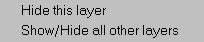
Right-clicking on one of the eyeball icons at the left side of
a layer will get you the context menu shown next. You can hide
the layer by simply clicking the eyeball, and can show/hide all
layers except the one clicked on by pressing Alt while clicking
the eyeball, so the context menu is sort of redundant.
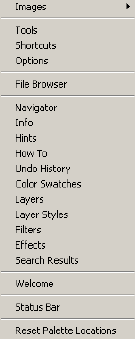
The options menu shown to the right is found by clicking
little arrow in the top right corner of the Layers palette.
Shown below, are the icons from the bottom of the palette.
They are, from left to right, Add Adjustment Layer, New Layer,
and Delete.

The lock options, shown next are for transparency (the
checkerboard), and complete locking (the padlock). Checking the
transparency box will prevent any pixels (color, opacity) from
being added to transparent areas of the layer. It also, and less
intuitively, prevents any areas that currently have pixels from
being made transparent. Erasing on a layer with transparency locked
will add the background color to erased areas. Layers with transparency
locked will show a partial padlock which is not black in its center.
Fully locked layers cannot be edited, painted on, or moved.

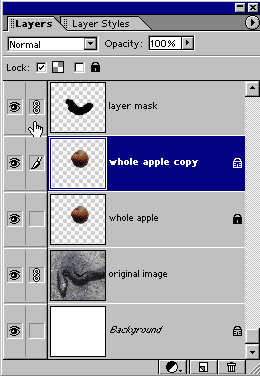
The icons in the two columns at the left side of each layer are
shown next. The eyeball, when showing, indicates that the layer
is visible. Click it to turn visibility off. The paintbrush indicates
that that layer is selected. In the layers illustration above,
left, the shape layer (second from top) shows a mask icon
in that place. If Elements allowed editing of masks (you can,
but it’s tricky), this would indicate that you were editing the
mask and not the image.
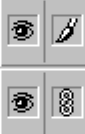
Back to the example above, the little vertical chain link indicates
that this layer is linked to another layer. When you click in
that column, the layer will become linked to whatever layer is
currently selected. So, for example, in the illustration, below
left, I have linked the top layer, and the next to last layers
to the selected (dark blue) layer. If I select the move tool and
move any of these layers, the other two will move, also.
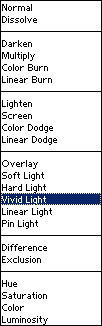
The box showing Normal in the upper left corner of the palette
contains the blend
modes menu which is shown at center below. Note that there
are quite a few new blend modes in Elements 2 (Linear Burn, Linear
Dodge, Vivid Light, Linear Light, and Pin Light). To its right,
is the Opacity box which can be set by typing in a value,
or by clicking on the arrow on the right side of the box to access
a pop-up slider which can be dragged to set the value. A high
value is more opaque; a low value is more transparent.
On the right below is the Adjustments menu found when you click
on the little black and white circle icon. [Note that (with the
exception of the blend modes) all illustrations shown above and
below are from Elements 1. Except for cosmetic differences, they
are the same in Elements 2.]
 BreBru.com