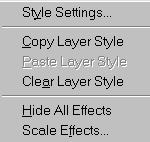
| |
Styles are effects such as shadows, bevels, and glows that
can be applied with a single click to the contents of a
layer. More than one style can be applied to the same layer.
A layer to which a layer style has been applied will show
a little italicized f icon in a black
circle. The only exception to this is if you apply the Visibility
> Hide style to a layer to which no other style has been
applied. This style, when used alone, will cause the contents
of your layer to disappear, but the little f
will not appear on the layer.
Be aware that many of the effects show up only on layer
content edges, so if your layer’s contents entirely fill
the image window (i.e. there is no transparency on your
layer), you will see very little, if any effect from many
of the styles. To have an effect apply to a particular shape,
put it on a layer by itself, surrounded by transparency.
There is a fairly extensive selection of styles included
with Elements. In Elements 1 there were 24 Complex styles
(the most elaborate ones), 14 Glass Button styles, 11 Outer
Glows, 11 Inner Glows, 10 Bevels, 8 Drop Shadows, 6 Inner
Shadows, and 3 Visibility styles (Show, Hide, and Ghosted,
in case you’re wondering).
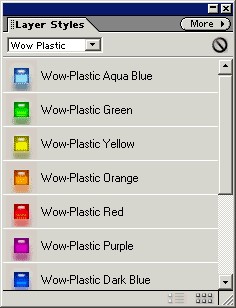
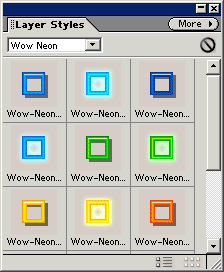
In Elements 2, they have added 13 Image Effects, 26 Patterns,
11 Photographic Effects, 5 Wow Chrome, 14 Wow Neon, and
11 Wow Plastic styles. The Wow styles are all outstanding.
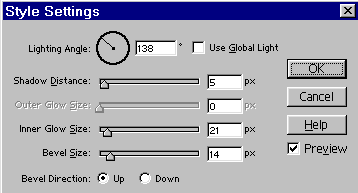
The ability to edit styles such as drop shadows, bevels,
and glows is limited. You can see the Settings dialog box
at the bottom of this page. You can alter size, and lighting
angle, and that’s about it.
Elements is not set up to save any styles you might create
on your own by combining multiple layer styles. However,
since you can copy styles, you can save styles in a document
dedicated to that. Create a layer with a simple shape, apply
your custom style, and then save the document. Use one document
to save multiple styles, each on its own layer. When you
need the style in a new document, drag its layer to that
document, and then copy the layer style to the new layer.
Please note that palettes which are in the palette well
will not stay open while you edit. To bring a palette out
of the well, click on its name tab and drag it out.
|
 BreBru.com