page two
The first Pre-Beginner tutorial walked you through a very simple
image edit sequence and skimmed over other important features. This
lesson will expand a bit on how to make selections, introduce you
to layers, show you how to use the clone stamp, and explain the
difference between vector objects and raster images. As you work
through my demonstrations, try to understand why and how the process
is working on your picture. It’s not enough to know how to follow
my instructions. You need to think about what’s going on if you
want to be able to use these tools on your own.
We’ll start with selections. If you want
to do anything to your pictures that affects only a part of the
image, you must use a selection. Do you want to change the picture’s
background? Take a person from one picture and put him into another?
Change the color of an object? Add layer styles to just the border
of your picture? You have to make a selection before you can do
any of those things.
Start by making a new white document.
Choose File > New and then pick Default Photoshop Size from the
Preset Sizes menu. Make sure Mode is set to RGB color and the White
radio button is clicked under Contents. Click OK.
In your toolbox, click on the lasso tool to select it.

Click and hold your left mouse button on your document and drag
roughly in a circle until you end up where you started. Release
the left mouse button. You’ll see an animated dotted line, usually
referred to as the ‘marching ants.’ That is your selection boundary.
With the selection active, choose
Edit > Fill. In the Fill dialog, from the Use menu, choose Pattern.
Next, click on the small square thumbnail to the right of where
it says “Custom Pattern.”
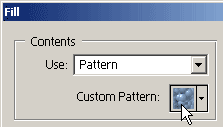
A pop-up palette of pattern choices will appear.

The default Elements patterns palette is awful, but there are some
excellent alternate palettes. To find them, click on the little
right-pointing arrowhead in the upper right corner of the patterns
pop-up palette.

From the menu that appears, choose Rock Patterns.

Once the rock patterns are loaded, click on the Rock Wall thumbnail
to choose it. You can find the name of a pattern by hovering your
cursor over the thumbnails, or you can go back to the palette menu
and choose Large List to view the pattern names with their thumbnails.

Once you have chosen the rock wall pattern, click OK to exit the
Fill dialog and fill your selection with the pattern. Only the selected
area is filled. The rest of the document remains white.
Choose Select > Deselect to end
the selection. Go back to Edit > Fill and click OK to use the
same settings as before. Your entire document will fill with the
rock pattern.
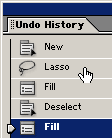
Use the Undo History palette to go back
to before you used the Fill command. Do this by choosing Window
> Undo History to open the palette. Then click on the state called
“Lasso” which will be before the two Fill states. You’ll be back
with your circular selection.
Choose Select > Inverse. Notice
that there are now marching ants around the perimeter of your document
as well as around your circled spot. Choose Edit > Fill and click
OK to fill with the same pattern. You’ll see that the fill goes
everywhere except into the original selection. That’s because you
have ‘inversed’ the selection. Many times it is easier to select
what you don’t want and then inverse the selection.
Choose Select > Deselect to end the selection. Go back to Edit
> Fill one more time. From the Use menu, choose White. Click
OK.
In the toolbox, choose the elliptical marquee tool. It’s under
the rectangular marquee in the upper left corner of the toolbox.
Click and hold on the rectangular marquee icon to get a flyout menu.
Then click on the elliptical marquee’s icon to choose it. Or you
can click on the rectangular marquee and then choose the elliptical
button on the options bar.
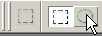
On the options bar, make sure Feather is set to zero and Style is
set to Normal.
Play with the elliptical marquee tool
for a few minutes. Drag a selection on your document. Do this by
pressing and holding the left mouse button and then dragging diagonally
across the area that you want to select. Dragging sideways makes
the ellipse wider but not taller. Dragging downward makes the shape
taller but not wider. Dragging diagonally does both at once. It
takes a while to get the hang of it.
Use Select > Deselect to end your selection.
With no selection active, press and hold the Shift key before you
start to drag your selection. Notice that this causes your selection
to be a perfect circle. Don’t release the Shift key until you have
released the left mouse button or the circle will turn into an ellipse.
Use Select > Deselect again to
end the selection. Try pressing and holding the Alt key before you
drag your selection. Notice that the selection now draws outward
from your initial click point. While you are dragging your selection
(the left mouse button is still pressed down), try pressing the
spacebar on your keyboard. Now, with the left mouse button still
pressed, continue to drag the mouse. The selection outline will
be repositioned, not resized, for as long as you have the spacebar
pressed.
Choose Select > Deselect to end
any active selection. This time, press and hold the Alt key and
click in the center of your document. Drag outward until there is
only about half an inch left between the selection and the edge
of the document. Remember, you can press the spacebar to reposition
(just be sure to keep pressing the Alt key and the left mouse button).
Choose Select > Inverse. Go to
Edit > Fill and choose Pattern from the Use menu. Choose one
of the rock patterns and then click OK. You’ve got a quick and dirty
frame effect.
Undo the pattern fill by choosing
Edit > Undo, or by using the Undo History palette (or Ctrl-Z).
Then deselect by choosing Select > Deselect (or pressing Ctrl-D).
Use Edit > Fill and click OK to
fill the document with the last used setting which were your rock
pattern. Create another elliptical selection just like the previous
one by pressing and holding the Alt key and dragging from the center
of your document. Choose Select > Feather. In the Feather dialog, enter 20.

Click OK. Next, choose Select > Inverse. The go to Edit >
Fill and in the Use menu, choose White. Click OK. You should see
a vignette effect that is popular for portraits. Please notice the
difference that the feathering made with this fill versus the
previous unfeathered fill.
You can set feathering on the marquee tool’s options
bar before making your selection. However, this does not allow you
to undo only the feathering if you find that you entered the wrong
amount. By choosing Select > Feather after you have created your
selection, you can use Undo History to undo and redo the
feathering amount (without deselecting) until you get it just right.
If you enter a feather amount on the tool’s options bar, using Undo
would also undo the selection outline and you would have to redraw
the selection in order to change the feathering amount.
Use Select > Deselect to remove
any active selection, then choose Edit > Fill. Use a pattern
of your choice to fill the entire document.
Please note that use of the Alt and
Shift keys when creating selections works as described above when
making new selections. If you already have a selection active, pressing
the Shift key as you drag another overlapping selection will cause
the new selection to be added to the first once you release
the left mouse button.
Pressing the Alt key while dragging a second
selection will cause the areas where the new selection overlaps
the old to be subtracted from the selection when you release the
left mouse button.
If you want to constrain an added
selection (use the Shift key for both functions) you need to press
Shift as you start the drag, release the Shift key, and then press
it again. Very tricky and I don’t expect you to want or need to
use the technique. I’ve mentioned it only so you can have it tucked
away in the back of your mind. Soon you’ll be an expert and this
stuff will mean something…
Switch back to the lasso tool by clicking on it in the toolbox. Make sure its options bar is
set to New Selection (the first button in the group of boxy icons
shown below).
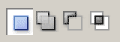
Make a selection of any shape, as long as it contains more than
half of your document (you want to select enough to see the effect
of what happens next).
With the lasso tool still selected
in the toolbox, place your cursor within the selection outline.You
will see the selection move cursor.

Press and hold the left mouse button and drag a little ways. The
selection outline will be moved. Next, press the left arrow key
on your keyboard ten times. You’ll see your selection outline move
ten pixels to the left. Now press the Shift key as you press the
right arrow key once. The outline will move ten pixels to the right.
In the toolbox, click on the move tool to select it. It’s in the upper
right corner of the toolbox.

Position your cursor within the selection outline and drag. You’ll
see the selected chunk of the pattern fill moved and the “hole”
filled with white (or whatever your current background color is).
If the selection that you are moving is on a layer (not the background)
a transparent hole will be created in the layer (without fill).
With the move tool still selected in the toolbox,
press any of the arrow keys on your keyboard. You’ll see the selection
contents moving with the selection outline. It’s important to notice
that the move tool will always cause the selection contents to be
moved.
Use Undo History to undo all of the
move tool edits so you won’t have a hole in your pattern. Or, you
can leave it, if you like.
With the selection active (if you
accidentally deselect, use Select > Reselect), choose Enhance
> Adjust Color > Color Variations. In the Color Variations
dialog, notice that the preview is limited to the selected area.
Click any of the color thumbnails at the bottom of the dialog to
alter the colors of the selection. Click OK to exit. Notice that
the color changes applied only to the selected area.
With the selection still active, choose
Filter > Artistic > Watercolor. Click OK to apply the filter.
Again, you will find that only the selected area was affected by
the filter.
Keep the selection active. Choose Layer > New Adjustment Layer
> Levels. Click OK in the New Layer dialog. Once the Levels dialog
opens, move the little sliders around under the histogram (the black
mountain peaks) while watching your document.
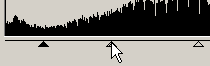
Make some dramatic changes by dragging the end sliders in toward
the center and moving the center slider toward either end, then
click OK to add the Levels adjustment layer. You’ll notice that
you have lost your selection in the process of creating the adjustment
layer.
Choose Window > Layers to open
the Layers palette. Take a look at the
new adjustment layer that was added. You’ll see a black and white
thumbnail was created in the shape of your selection.

That is the adjustment layer’s mask. I won’t try to confuse you
by getting into what you can do with a mask, but I can tell you
that they are wonderful, powerful things. As you rummage around
this Web site, you should find out more about how they work.
Choose Select > Reselect to get
your selection back. Then choose Layer > New Fill Layer >
Solid Color. In the New Layer dialog that appears first, from the
Mode menu, choose Color (the Color mode is way down at the bottom
of the menu). Click OK and the color picker will open. Pick any color
you like, then click OK. The selected area has now been recolored
or tinted with the color that you chose.
The marquee tools are best for geometric
selections. The lassos are fine for making loose, feathered
selections to do mild corrections. If you want to precisely cut
an irregular shaped object out of its background, or, conversely,
if you want to select all of a multicolored background in order
to change its content, I would strongly recommend that you paint
on a separate layer and then Ctrl-click that layer to load your
selection. This technique is described at length in the Simulated Alpha Channels tutorial. You can make
intricate selections with the lasso by using the Add and Subtract
buttons or keyboard shortcuts, but why do it that way when painting
on a layer is so much easier and better?
The new selection brush in Elements 2
is a great tool for beginners to use since it allows you to stop
and start without losing your selection. However, it makes very
imprecise selections. Once you have learned how to use other, better
tools, I don’t recommend that you use the selection brush.
Related tutorials and information
on selections can be found in the Selections tutorial in the Photoshop section
as well as on the Feathering and Anti-aliasing pages.
Layers. You’ll love them once you understand them. Look at your
Layers palette (Window > Layers
if it’s not open). You should see the background layer at the bottom,
your added Levels adjustment layer, and the solid fill layer.
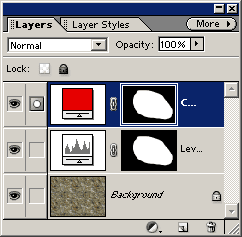
Double-click on the Levels thumbnail at the left end of its layer
(not the mask thumbnail).

The Levels dialog will reopen right where you left it. Move the
sliders around some more. You can edit an adjustment layer at any
time. The underlying image has not been altered and can be ‘reclaimed’
at any time by deleting the adjustment layer.
Try double-clicking on the solid color
fill layer’s thumbnail and choosing a new color. Finally, delete
both the fill layer and the Levels layer by clicking on them in
the Layers palette and then clicking
the garbage pail icon in the bottom right corner of the palette.
You should be left with just the background layer.
Fill your document with a pattern,
once again. Try something new if you’re getting sick of the rocks.
Load the Nature Patterns palette and then choose the Spiky Bush
pattern. Click OK to add the fill. Notice that the pattern details
are small. Maybe you’d like to make them bigger.
Use Undo to get rid of the pattern fill.
Then choose Layer > New Fill Layer > Pattern. Click OK in
the New Layer dialog. Then the Pattern Fill dialog will open. You’ll
find a Scale slider there. Try setting it to 350 %.
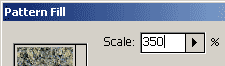
You’ll see a very blurry bunch of spiky bushes. Move your cursor
over your document. Click and drag to reposition the pattern. Click
OK to add this remarkably ugly pattern to the document. Then choose
Layer > Merge Down to merge the pattern into the background (you
can’t copy pattern content from a fill layer which is what I’m going
to do next).
Make an odd shaped selection with
the lasso tool. Were this an image, you might
be selecting an object or person that you want to cut from the background.
With that selection active, choose Layer > New > Layer via
Copy. Look at your Layers palette. You’ll see a new
layer with the copied selection contents. You can’t see it in the
document because it hasn’t been moved and therefore matches perfectly
with its original background.
To see just your copied layer, turn
off visibility for the background layer. Do this by clicking the
eyeball icon at the left end of its layer.

You’ll see the contents of your copied layer surrounded by a gray
and white checkerboard pattern. That checkerboard indicates transparency
(no content) on the layer. It is there for display purposes only.
It will not print or show up anywhere outside of Elements. It is
very useful when you need to see where a layer does not have content.

Click on the background layer. Turn visibility back on by clicking
on the box where the eyeball was. The eyeball will reappear along
with the background. Choose Edit > Fill and fill with anything
you like so long as it’s not the Spiky Bush pattern. You’ll
see your copied object over a new background. Those are the basic
steps to creating new or different backgrounds or for moving an
object around on a picture.
To move the copied object onto an
entirely different picture, first, open the second image (File >
Open). Click on the blue title bar of the first picture to make
it active (the layers visible in the Layers palette are always
only for the currently active document). In the Layers palette,
click directly on the copied layer and drag it onto the second picture
(not the Layers palette).
Use the move
tool to get the object where you want it on the second image.
When using the move tool, first be sure you have the layer that
you want to move selected in the Layers palette. Click on a layer
to select it. When nothing is selected, the move
tool will move the entire layer. If you have an active selection,
the move tool will move whatever is within that selection on
the current layer. The move tool will not move anything that
is not on the currently selected layer (unless you have linked another
layer to that layer by clicking the link box to the right of the
eyeball icon; don’t worry about that for now).
The steps listed above are very crude;
for better instruction on compositing pictures, see the Combining Images tutorials in the Photoshop section.
Back on our demonstration document,
click on the copied layer to select it. Then choose Filter >
Artistic > Watercolor. Notice that the filter only affects the
currently selected layer. This is true for most of the commands
and tools. If you paint or erase
or fill or move or filter, it will affect only the
currently selected layer in the Layers palette. Think of the control
this give you.
Selections made with the selection tools
(lassos, marquees, selection brush, magic wand) apply only to the currently
selected layer though you can use the same selection outline on
different layers by clicking on a different layer in the Layers
palette while the selection is still active. For example, if you
make a selection and then apply a filter, only the content within
the selection on the current layer will receive the filter effect.
Likewise, if you make a selection and then choose Layer > New
> Layer via Copy, the new layer will be created from copied material
on the current layer, only.
Open the Layer Styles palette (Window
> Layer Styles) and apply a few styles to the copied layer. To
apply a style, click on its thumbnail in the Layer Styles palette.
Layer styles apply to the layer that is currently selected in the
Layers palette. They affect only areas on that layer that contain
content. If your layer is entirely opaque, the style will cover
the layer. If the layer contains a shape or object surrounded by
transparency, the style will appear only on that shape or object.
Layer styles apply only to opaque areas of a layer. A glow or shadow
may radiate outward from the shape or object, but the shape or object
defines the base from which the glow or shadow is generated.
Note that layer styles are cumulative.
If you don’t want them piled on top of each other, use the Clear
Style button in the upper right corner of the Layer Styles palette.

continue on the next page
|
 BreBru.com