|
 |

|
The rectangular, and elliptical marquee tools are grouped
together in the toolbar. To find the one you want, click
on whichever is showing in the toolbar, and select the one
you need from the pop-up menu.

When dragging a new selection, you can constrain the rectangular
marquee to draw a perfect square by holding down the Shift
key while dragging your selection. Doing this with the elliptical
marquee tool will get you a perfect circle. Pressing the
Shift key while a selection outline is already active will
cause the new selection to be added to the existing one.
If you hold down Alt as you drag, the selection will draw
outward from that point, i.e. the initial click will be
the center of your selection, and, as you drag, it will
radiate outward from that point. Pressing Alt while a selection
outline already exists will cause the second selection to
be subtracted from the first.
Note - if your Alt key does not appear to be working
in Elements, you may have another program running in the
background that has taken over that key. GuruNet (Atomica)
and FlySwat are two such applications. Uninstall them, or
reassign the hot key in those programs to regain use of
the Alt key in Elements.
To move a selection border as you drag, hold down
the spacebar, and reposition your outline. To move a selection
outline after you have completed it, make sure a
selection tool is selected in the toolbar, then place the
pointer inside the selection outline, and drag. To
move the contents of a selection, use the move tool.
The keyboard shortcut for these tools is the letter M.
Hold down the Shift key while pressing the shortcut key
to toggle between the rectangular and elliptical marquee
tools.
|
The top two illustrations below are the rectangular marquee
tool’s options bar (split in two because it’s so long). Choose
a Feather amount, [usually 2-5 pixels] if you want
a softer edge. Be aware, that current location colors will move
with the feathered edge if the contents of the selection are moved.
Anti-aliasing, which smooths pixel edges on curvy
lines, is available only for the elliptical marquee tool as shown
in the third illustration below (the rectangular marquee draws
only horizontal and vertical straight edges that would do not
require anti-aliasing).
If you choose Fixed Size from the Style menu, shown, and
enter dimensions in the Width, and Height boxes,
a marquee will appear to those dimensions when you click
in the image. You can then place the pointer inside the selection
outline and drag to move it (unless you have anything other than
button (1) described next selected). If you use any Style setting
other than Normal be very sure to set it back to Normal when you’re
finished. Otherwise you’ll be tearing your hair out wondering
what’s wrong with the tool the next time you try to drag a selection
in the usual way.

Once you choose either of the Fixed options, the Width and Height
options become available. If the units used for Fixed Size are
not what you want, right-click directly on the text box to get
a menu of available choices. You have to do this for both text
boxes; resetting one does not reset the other.

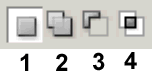
The last illustration, below is a numbered, larger scale
version of the buttons from the left end of the options bar which
determine how the selection you draw will interact with any existing,
active selections. They are:
1) make a new selection (no interaction)
2) add to an existing selection
3) subtract from an existing selection
4) select only the overlapping area in this new selection, and
an existing selection
If you have doodled with a tool’s options and want to get back
to the default settings, click that tool’s icon at the far left
end of its options bar. Choose either Reset Tool to reset only
the current tool, or Reset All Tools to restore default settings
to every tool.
Please note that all descriptions, and illustrations featured
refer to files which are in Photoshop’s .psd format, and which
are in RGB color mode. Other file formats, and color modes may
generate different options. Some Photoshop features are not available
for images not in .psd format, or RGB color mode. To find what
color mode your image is in, choose Image > Mode.
 BreBru.com