|
The linear gradient is applied by dragging over the entire
length of the area you are applying it to. The other four
gradients are applied to the radius of the area,
since the gradient will expand outward in all directions
from the start point.
The Linear gradient, which icon you see at the top
of the page, adds shades from where you first click to where
you release the mouse button after dragging across the image.
The radial gradient, icon shown below, applies shades
in a circular pattern, radiating outward from the point
where you first click. The line you drag is the radius of
the circle of colors.

The colors applied by the angle gradient, icon shown
below, look like a cone, or Chinese hat, with the point
at the top being the spot where you first click. Shades
are applied in a counterclockwise spiral.

The reflected gradient, icon shown below, looks
like the linear gradient but with a mirror image gradient
radiating in the opposite direction from the linear one
where you have dragged with the pointer.

A diamond gradient looks like a starburst, or lens
flare with distinct, shaded flare lines radiating from the
point where you first click.

The gradient you have chosen, or created in the gradient
edit dialog box [see second section below] is applied from
the color shown on the left side of the gradient bar on
the options palette, to the right. If you wish it applied
in the other direction, check the Reverse box on the options
bar.
All gradients will cover the entire layer with their colors.
The area you drag over will show the gradient variations
and the rest will have the end color without gradient. If
you want the gradient applied only to a particular area,
select it first, and apply the gradient by dragging
across the selected area. You can start and/or end your
gradient drag outside of the selection boundary, but coloring
will only be applied within the selection.
All gradients are applied with a transparency mask. You
can turn it off by deselecting Transparency in the options
palette, or edit it in the gradient editor [see second section
below].
If you have problems with banding in your gradients (colors
separating into stripes of different shades instead of making
a smooth transition), try applying a small amount of noise
with the Add Noise filter. Choose Filter > Noise >
Add Noise.
The keyboard shortcut for the gradient tool is the letter
G.
|
The first two illustrations below, are the gradient tool’s
options bar. I cut it in two since it was so long, it stretched
the window. The box showing Normal is a drop down menu of all
the blend modes available
for the gradient.
The Opacity setting will determine the transparency of
the entire gradient. Type a value into the box, or press the arrow
to the right of the box, and use the slider that appears. Note
that this is not the same as the transparency mask that is part
of the gradient itself. This setting affects opacity for all of
the color applied with the gradient tool. The gradient’s transparency
mask gives a opacity transition across the length of the gradient
colors, and can be edited via the Edit button. The mask can be
turned off by deselecting the Transparency check box.
Choose Dither to make a smoother transition between the
colors in the gradient. This helps prevent banding. Choose Reverse
if you want the gradient color sequence shown to be applied from
right to left instead of the default left to right.
Clicking on the tiny arrow next to the gradient thumbnail
at the left end of the options bar will open the gradient pop-up
palette showing the default gradients from which you may choose,
see the second illustration below. Clicking on the arrow in the
upper right corner of that pop-up palette will open the menu,
shown to the right which includes other gradient
palettes which are available.
If you create and save a custom set of gradients, they will appear
in this menu after you have closed and reopened Elements.
Gradients may be created, or edited by clicking on the thumbnail
which is showing in the options bar (not one which is in
the pop-up palette).
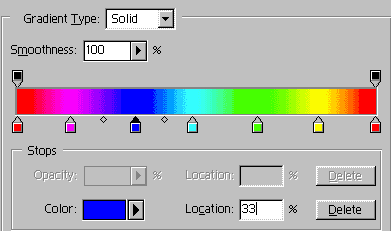
In the illustration shown left below, the gradient transparency
is being edited. Notice that the Color settings at the bottom
of the menu are grayed out. You can choose to edit an existing
gradient from the menu at the top, or create your own gradient
from scratch by clicking the New button, and choosing a name.
Transparency stops are upside down, along the top of the gradient
bar. Color stops are right side up (if you think of them as little
houses) underneath the gradient bar.
You can add as many intermediate stops as you wish to the gradient
by clicking next to the gradient bar. Stops can be dragged to
relocate them. The little hollow dots which appear on either side
of a selected stop determine the midpoint of the shading between
two stops. They too can be dragged. Experiment with dragging stops
and midpoints.
In the first example, the transparency stop centered
above the bar is currently selected. A selected stop will
have a black “roof”. This stop’s location in the gradient is shown
in the Location box.
In the second example, which shows just the bottom of
the dialog box, a color stop is selected. It’s the blue
one just left of center, and below the gradient bar. Color
stops are below the bar, transparency stops are above. Note that
the Color options at the bottom of the box are now active,
and the transparency settings are grayed out. Also note that I
changed gradients between the two illustrations.
The third example shows a noise gradient being edited.
This can be chosen from the Gradient type menu, and I have no
idea what it is. Looked interesting, though.
Append previously saved gradients to the menu list by clicking
the Load button. Using this button or the Load command
in the pop-up palette menu allows you to open a new gradient palette
without closing the current palette and thus losing your custom
gradients in the current palette. If you use Reset Gradients or
load any of the other gradient palettes by choosing them from
the palette menu, you will lose all custom gradients that have
not been saved to their own set.
When you have edited the gradient to your satisfaction, click
OK, to return to your image. The newly created or edited gradient
will now appear in the gradient tool’s options palette. If you
want to create more than one gradient while still in the Gradient
Editor, click the New button at the completion of each gradient
to add the gradient that you have just created to the current
palette.
Custom gradients that you have created can be saved as a custom
set along with the other gradients in the current palette by clicking
the Save button. If you want to save your custom gradients
in a custom set without the rest of the current palette, use the
Preset Manager and not the Save button. To do this choose Edit
> Preset Manager, and choose Gradients from the Preset Type
menu. Click, and Shift-click to select all the gradients you would
like to be included in your new set. Choose Save Set and give
the set a name. After you close and reopen Elements, your new
set will appear in the gradient tool pop-up palette’s menu.[Note
that all illustrations shown below are from Elements 1. Except
for cosmetic differences, they are the same in Elements 2.]
 BreBru.com