
|
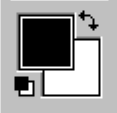
In the illustration at the top of this page, the large
black square is the foreground selection square. If you
click on this, the Color Picker, shown below will be activated,
and you can choose a color there, or you can click anywhere
in the image to pick up a color.
Clicking on the box behind the foreground square, shown
with the default white color in the icon above, will activate
the same color picker where you can choose a background
color.
If you click the two small, squares in the bottom, left
hand corner of the icon above, #14 in the diagram at left,
you will restore the background, and foreground colors
to their default black and white.

If you wish to reverse the background and foreground
colors, click the curvy, double headed arrow in the upper
right corner of the icon (#27 in the diagram at left).
In the example shown, this would cause black to become
the background, and white to be the foreground. This can
be especially useful when editing a mask.

The keyboard shortcut for reversing the background and
foreground colors is the letter X. The shortcut key for
returning the two colors to their default black and white
is the letter D.
|
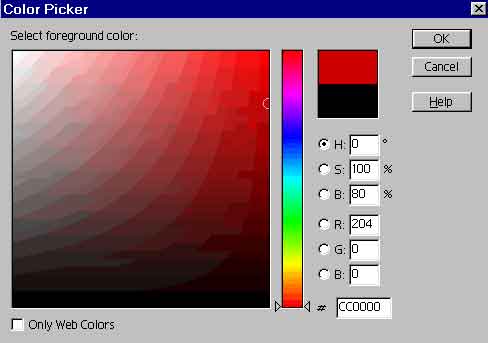
In the illustration below you see the color picker,
which appears when you click on the background, or foreground
squares. The black rectangle just right of center is the color
which was in selected (in the toolbar) at the time the Color
Picker was activated.
The red rectangle immediately above it is the color which has
just been clicked in the large color box to the left. If, after
clicking a color, you see a little cube appear next to you new
color rectangle, this indicates that the color you've chosen
is not Web safe.

If you click on the little cube icon, or the tiny
color square, the chosen color will jump to the nearest Web
safe color.
By dragging the small triangles next to the vertical
color column at center, you can change the range of colors available
in the large box at its left. Click anywhere in that box, or
within the vertical color column itself, to select a color.
The white circle barely visible at the extreme upper right side
of the large color square indicates where I clicked to choose
the red color currently selected. You can change your choice
as many times as you like, before clicking OK to finalize your
selection.
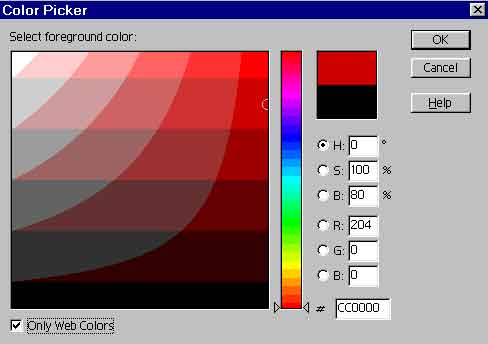
Check the Only Web Colors box in the bottom
left corner of the box if you want only Web-safe colors to be
displayed in the big color box. You will see a different, banded,
color display when this option is selected. (The banding in
the illustration above is due to the JPG image quality
of the screen capture. The Color Picker only shows banding when
you choose the Only Web Colors option.)
 BreBru.com
