
|
[Please note that in Elements 1 the dodge tool is
at the #24 position on the toolbar, grouped with the burn
tool.]
The dodge tool will lighten the pixels dragged over according
to the percentage chosen in the tool’s options bar [see
below]. You can choose to lighten highlights, midtones,
or shadows. Each must be worked on separately; the tool
does not work on all three at once.
To use the dodge tool, select it in the toolbox, choose
your settings in the options bar, pick a brush from the pop-up palette, and drag
in the image to lighten the chosen tones. This tool has
an effect on click, but does not do any additional work
until it’s moved. However, repeated stroking over the same
area does have a cumulative effect.
A shortcut for changing brush size while using this tool
is to press the left bracket [ to decrease brush size, and
the right bracket ] to choose a larger brush.
When editing an image with any tool that uses brushes,
you can right click on the image and the brushes pop-up
palette will appear right next to your cursor. Press Enter
or click on the document’s blue title bar to close the pop-up
palette after choosing your brush.
Note that these tools cannot be used on 1 bit Bitmap mode,
or Indexed color mode images.
The keyboard shortcut for the dodge tool is the letter
O. You can toggle to the burn tool by holding down the Alt
key (the burn tool does the reverse of what the dodge tool
does).
|
The illustration below, is the dodge tool’s options bar.
To choose a brush size, and type, click on the brush thumbnail.
A pop-up palette of available brushes will appear. For more information
on brushes, please see the Brushes page.
The Exposure value can be set by typing a value into the
text box, or by dragging a slider. To find the slider, click on
the little arrow to the right of the percentage value. The Exposure
setting determines how fast the image is lightened where you drag
over it with this tool. I recommend using a low setting of 10 %
or less and stroking repeatedly to reach the effect you want.
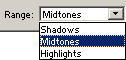
The Range drop down menu features three choices. You can
work on only one at at time. If Shadows is selected, only
dark areas will be lightened. Dragging the tool over bright, highlight
areas will have no effect, and vice versa when Highlights
is selected.

If you have doodled with a tool’s options and want to get back
to the default settings, click that tool’s icon at the far left
end of its options bar. Choose either Reset Tool to reset only
the current tool, or Reset All Tools to restore default settings
to every tool.
Please note that all descriptions, and illustrations featured
refer to files which are in Photoshop’s .psd format, and which
are in RGB color mode. Other file formats, and color modes may
generate different options. Some Photoshop features are not available
for images not in .psd format, or RGB color mode. To find what
color mode your image is in, choose Image > Mode.
 BreBru.com

