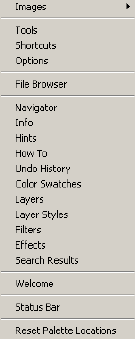
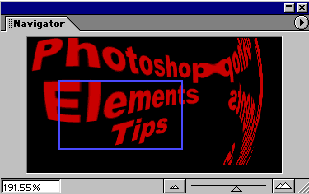
In the Navigator palette, you will see a thumbnail copy
of the active image. The screen’s boundaries will show as
a red outline over your image. If your image doesn’t fit
on screen, the screen outline will be superimposed on the
thumbnail. Drag within the red outline to move the screen’s
view. If you click anywhere on the image thumbnail, the
view will change to include that area.
The default color of the screen outline within the Navigator
palette is red, but you can change this, if you like. Access
the palette options by clicking on the arrow in the top
right corner of the palette. You can choose a preset color,
or click on the color box and use the Color Picker. To see
how the color picker works, look at the illustration shown
at the bottom of the foreground,
background color page.
There are zooming features at the bottom of the Navigator
palette. Type a value into the text box, or drag on the
slider. Left zooms out, right zooms in (magnifies the image).

Please note that palettes which are in the palette well
will not stay open while you edit. You also cannot access
the palette menu when a palette is in the well. To bring
a palette out of the well, click on its name tab and drag
it out.
|
 BreBru.com