page three
The Help menu has some interesting things in it other than help.
But, if you really do need help, click on Help Contents,
and then use the Search feature. Search works much better than trying
to use either the Contents or Index.
The More Help button in the Hints palette is also a good way to
go directly to the pages in Help that are about the current tool
or palette.
If you need to find what version of Elements you are using, and
who it is registered to, choose the About Photoshop Elements
command. For example, if there has been an update, or patch for
the program, you can find out here if your copy has been updated.
About Plug-in will give you a mammoth menu of all the plug-ins
included with Elements. Clicking on the name of a plug-in will give
you a brief summary of its make and model.
System Info provides a summary of your operating system,
memory, application location, installed plug-ins, and installed
Twain drivers all in teeny tiny print.
The Photoshop Elements Tutorials are very limited, but you
might want to try them.
If you are connected to the Internet, the Support command
will take you to the Adobe.com support page. Note that this is their
general support location, and is not specific to Elements. However,
you can use this as a starting point to search their Knowledgebase,
or to find your way to the User to User forums, where Elements has
its own forum. This is a good place to ask questions, and get good
expert answers for free.
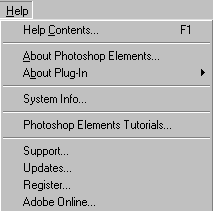
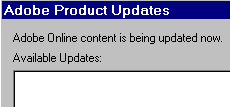
The Updates button, which also requires that you be connected
to the Internet, will search for any updates, including new Recipes,
that are available.
The window, partially shown above
(only the upper left corner of the dialog box is shown) will appear,
while Adobe Online is checking your system and comparing it to what’s
available. Keep your eye on the “...content is being updated now.”
message. As long as that’s there, Adobe Online is still searching.
Once it disappears, any new updates
will be listed in the white text window. If there are no new updates,
the message will disappear, but you won’t get any kind of alert
that it’s finished.
Since I had already updated a few
days ago, there weren’t any new updates, but if there had been,
they would have appeared in the white window below where it says
Available Updates. Each available update has a checkbox next to
it, and you can choose which you want, and then click the Download
button at the bottom of the box.
The Adobe Online command gives
you the option of setting automatic download preferences, or going
to the Updates page discussed above.
Clicking Register will take
you to the online page where you can register your Adobe product.
The last topic you should know about is your Preferences file.
If Elements ever starts acting funny, or misbehaving in any way,
the first thing you want to try is deleting your Preferences file.
The quick and easy way to do this
is to press the Shift, Ctrl, and Alt keys all at once as you are
launching Elements. You will then be requested to confirm your request.
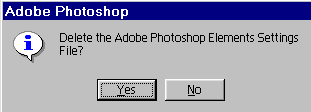
Click “Yes” and Elements will then continue to load. A new Preferences
file is generated automatically.
A corrupted Preferences file is very
often the source of your problems, and deleting it should be the
very first thing you try if you are having new, unexplained problems
with Elements performance.
Preferences are set by choosing Edit > Preferences. Here you
can change many of Elements features to better suit your working
style.
When you delete the Preferences file,
as described above, of course, all your preferences are set back
to their default values. If your preferences are very different
from the default settings, it may be a good idea for you to keep
an uncorrupted copy of your preferences somewhere outside the Adobe
folder. That way, after deleting preferences, you can simply copy
the saved file into the Settings folder.
Be aware that preferences are not
saved until you close Elements. Therefore, if you have just deleted
and then recreated your preferences, close Elements before copying
the clean file to a safe location.
Where can you find your preferences
file? Depends on your OS. The list at the end of this page comes
from the Read Me file that came with Elements.
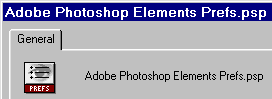
If you are unsure about exactly which
file is the Preferences file, right click on the one you think might
be it, and choose Properties from the menu. The file Properties
box should look like this (top only shown)
Preferences locations:
Windows 98 or Windows ME:
Windows\Application Data\Adobe\Photoshop\Elements\Adobe Photoshop
Elements Prefs
Windows NT:
WinNT\profiles\<username>\Application Data\Adobe\Photoshop\Elements\Adobe
Photoshop Elements Prefs
Windows 2000:
C:\Documents and Settings\<username>\Application Data\Photoshop\Elements\Adobe
Photoshop Elements Prefs
|
 BreBru.com