| page five
Here are two possible methods for altering a male portrait to “depersonalize”
it, or make it into a generic illustration.
The top image is the original, unfiltered
photo from the Corel Studio samples.
The middle image was not filtered,
but the blend mode of the Colored Image Outline layer was changed
to Multiply.
The third example was made by applying
the Water Paper filter (Filter > Sketch > Water Paper) to
the background copy layer, and then changing the blend mode of the
Colored Image Outline layer to Hard
Light.
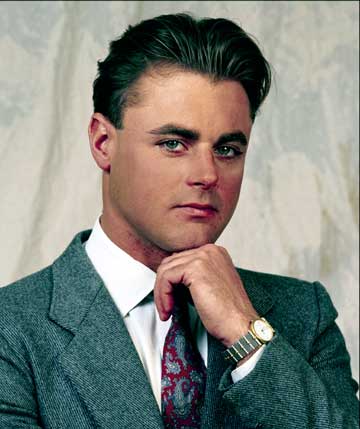
original, unfiltered image
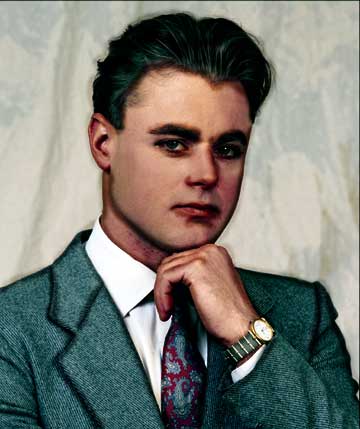
no filter, blend mode Multiply
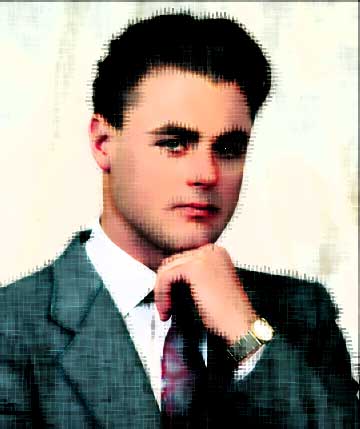
Water Paper filter with Hard
Light
If you use this outlining/filtering technique on things other than
portraits, your choice of filters is much greater. For example,
on the flower photograph shown below, I used the Craquelure filter
(Filter > Texture > Craquelure). You should not use this filter
on someone’s face.
To show you how this technique looks
with a layer mask, I did the flower that way. The problem with using
a layer mask is, it’s very hard to see where your black outline
is being applied. If you Shift-Alt click on the layer mask icon,
you can edit the mask in rubylith mode (like Quick Mask) but this
is still harder to see than a opaque black line directly on the
image.
With this image, I applied a Hue/Saturation
increase of +38 % to the Colored Image Outline layer to make
the edges pop. This is also something that you would not do to a
portrait.
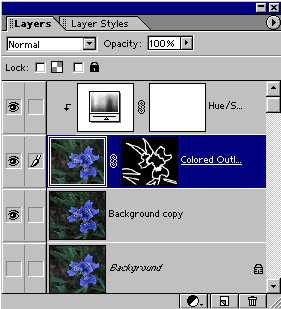
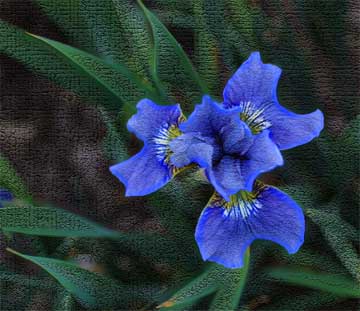
Craquelure with Hue/Sat adjustment
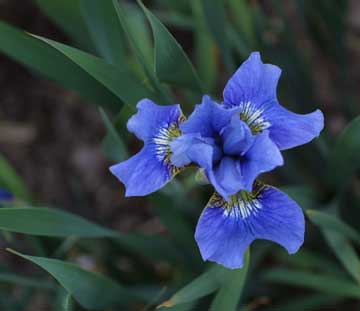
original, unfiltered image
[the Ctrl-J shortcut
for duplicating a layer or selection
contents to a new layer is disabled
in Elements 2. Use Layer > New >
Layer via Copy instead.]
|
 BreBru.com
