BreBru.com
Extra Info
Music
Room
ArtRoom
|
Subjects: Geography, Language
Arts, Social Studies
Grade Level: High School
Required Software: Microsoft® Word®, Encyclopedia, Microsoft®
Internet Explorer, Microsoft® Access
The last 100 years has been a period of unparalleled achievements
in science, medicine, human rights, and more. In this activity,
students will identify key figures in 20th century progress
and then document the life and times of each in a searchable
database.
To expose you to 20th century history and to the people
who shaped it and to introduce database tools and organizing
techniques.
Basic experience with Microsoft Word and Microsoft Access
and basic research skills using the Encyclopedia and Microsoft
Internet Explorer.
4 - 6 class periods
How to Begin
- Launch
Access . In the opening dialog window, select Create a new
database using blank Access database . When the File New
Database window appears, name your database "Giants of the
Century" and save it to a location.
- When the
Database window opens, double-click on Create table in Design
view .
- Create
fields for Name, Nationality, Area of Influence, Decade,
Contribution, Picture, and Sources.
- Click in
the Data Type cell for the Picture field. Click the drop-down
button and select OLE Object from the list.
- Click in
the Data Type cell for the Name field. Click the drop-down
button and select Hyperlink . Do the same for the Decade
field. The students will connect these links to their proper
destinations later.
- By default,
text fields hold only 50 characters, but you'll want more
room than this for the Contribution and Sources fields.
To increase field size, click on the field to display Field
Properties, and select the General tab. Increase the Field
Size value to 255.
- Close the
table. You'll be prompted to assign a primary key, but you
don't need to because the database will contain only one
table.
- Now
design a form for entering information into the table. In
the Database window, click Forms in the Objects column,
then double-click on Create form by using wizard .
- In
the sequence of Form Wizard dialog boxes, select all available
fields in your table, then choose columnar layout and a
style for your form.
- In
the final Form Wizard dialog box, confirm a title for your
form, select Modify the form's design , then click Finish
. The form will appear in Design view.
- To prevent images you import
into the database from being clipped or distorted, select
the Picture field by clicking on it, then select Properties
from the View menu. Select the All tab, click in the Size
Mode field, and select Zoom from the dropdown list. Close
the Properties window.
- Make
any other changes you like to the form in Design view, either
by selecting and dragging objects to different locations
or by editing properties as in step 11.
- Close
and save the database. Now you can create records (like
the sample shown on below) for the individuals they've chosen
and link them to biographical and historical information
as described in the Student Activity section.
One exciting way to look at history is
by studying the people who shaped it. In this activity, you
and each of your classmates will choose five individuals in each of five different fields ( art, music science, math, etc.) who
made the world a better place during the 20th century. Then,
in a single database, you'll combine information about their
lives, accomplishments, and the historical events that influenced
their work.
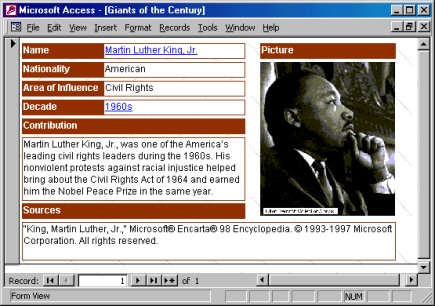
You can use Microsoft Access to collect information about your
history makers.
Step A
Giant Research
Software:Encyclopedia, Microsoft Internet Explorer, Microsoft
Access
What To Do:
- Think about
the greatest achievements of the 20th century, in any and
all fields of human endeavor. Who made them happen? What
names come to mind? Thomas Edison? John Lennon? Mother Teresa?
Pick five people in each of five different fields whose accomplishments you admire most,
or who you'd like to learn more about.
- Using the
Encyclopedia and Internet Explorer, search for images and
information about the men and women you've chosen. The URLs
listed below will help you get started on the Web. Request
permission to reproduce images if permission is not explicitly
given in the source. Cite all sources you use.
- Use the
Access form you created to collect information about each
person, including area of influence, and the decade and
nature of his or her major contribution(s).
- When you
enter information in the Name and Decade fields, it will
appear blue and underlined. These are hypertext links, but
they won't work properly until you connect them to their
appropriate destinations in Step D.
- Find a
picture of each of your chosen history makers, and include
it the Access record. To insert the image into the form:
- Click
in the Picture frame to select it.
- Go
to the Insert menu and choose Object.
- In
the Insert Object dialog box, select Create from File.
Then use the Browse button to locate the image you have
saved so that the path to it appears in the File box.
- Click
the Link check box, then click OK.
Step B
Get Personal
Software: Microsoft Word, Encyclopedia, Microsoft Internet Explorer
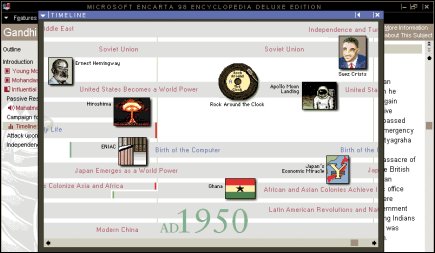
The Microsoft Encarta Encyclopedia Timeline gives you the big
picture.
What to do:
- Create
a list of all the people represented in your database.
- Use Web
resources to research and write short biographies on the
individuals assigned to you --- no more than a page each.
Each biography should be a separate Word document.
- Make sure
you use the same margins, font, and other formatting so
that all your biographies share a common look.
- Use the
subjects' last names for your file names, and save them.
Step C
Make History
Software: Microsoft Word, Encyclopedia, Microsoft Internet Explorer
What to do:
- You will
need to research the time around the lifespan of each person
you selected to document.
- Using the
Encyclopedia and Web resources, research and write a one-page
Word document highlighting the major events.
- Keep in
mind that the purpose of this document is to provide a historical
context for the achievements of the men and women you have
chosen. The scope of your history document must be broad
enough to encompass events that may have influenced all
the "giants of the century" who made their major contributions.
Research tip: Encarta Encyclopedia articles about the people
you have chosen include links to related historical information.
Encarta Encyclopedia also contains a timeline that provides
an historical big picture.
- When you
are done with your history document, save it.
Step D
Pull It All Together
Software: Microsoft Access
What to do: Now you can link your records to the relevant biography
and history documents. Here's how:
- Open the
"Giants of the Century" database. In the Database window,
click Forms in the Object column, then double-click on the
form name to open it.
- Go to each
of the records you created in Step A. Click on the person's
name, then cancel any dialog boxes that appear. The name
will then be highlighted. Go to the Insert menu and select
Hyperlink to open the Insert Hyperlink window. Browse to
the location of the biography document for that person and
click OK .
- Repeat
this procedure with the decade you've entered in the Decade
field, but link to the document that contains history for
the corresponding period.
- Your "Giants
of the Century" database is complete. Browse the records.
What does it tell you about the 20th century?
|