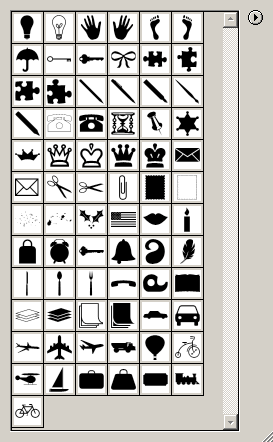
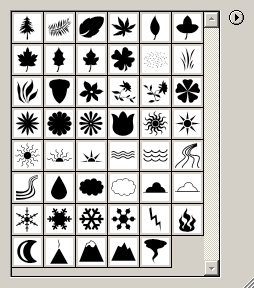
This page is only about the custom shape tool. For information
on all the other shapes, please see the main shapes page.
Please note that in Elements 1
the icon that appears on the shapes options bar will change
to show the icon of whatever custom shape you last used
(no longer the case in Elements 2—you’ll always see the
same talk balloon shape). The default icon was the heart
shape, but that will be visible only until you use any other
custom shape.
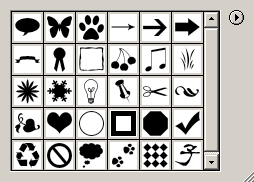
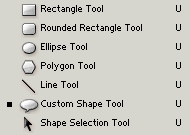
The custom shape tool is grouped with the other shapes
in the toolbar. To find it, click on the shape icon which
is showing and select it from the pop-up list. Or, you can
select any of the other shape tools and then choose the
custom shape from the options bar.
Shapes are created by combining a color fill layer with
a vector path that defines the shape outline. Vector outlines
are edited differently than bitmap, or raster image areas
(which, with the exception of the type tool, is what the rest of your Elements features
use).
To select shapes you must use the shape select tool. If you have multiple
shapes on the same layer and you want to move only one of
the shapes, you also need to use the shape select tool,
and not the move tool. You can, however, use the move tool
to move the entire layer, and all the shapes (in unison)
that are on it.
To add a custom shape, set your foreground color to the
color you want in your shape, select the shape tool, set
its options, and then click and drag (holding the left mouse
button down) diagonally from the top left corner to the
bottom right corner of the size and proportions that you
want for your shape.
The keyboard shortcut key for the custom shape tool is
the letter U. Cycle through all the shape tools by pressing
the Shift key while typing the keyboard shortcut.
|
 BreBru.com