
|
|
1.9 IMAGE ARITHMATIC | ||
 Learn
To Draw Learn
To Draw |
Learn
To Paint |
Photoshop
Elements |
Animation
Menu |
Art
Principles |
Art
Appreciation |
When working with digital images, there are times when you need to convert among image dimensions expressed in inches, pixels, or pixels/dots per inch. Don't tune out here, it's only multiplication and division!
 |
| It seems like you've always needed to know a little arithmatic to
be a photographer. Courtesy of the Library of Congress. |
As you've seen, images are described by their dimensions in pixels. However, printouts are described in inches or centimeters. What if you have a digital image and want to make a printout. To know how large an image will be when displayed or printed, you convert from pixels to inches (or cm). To do so, you divide the image's dimension in pixels by the resolution of the device in pixels per inch (ppi). For example, to calculate the dimensions of a 1500 x 1200 image being printed at 300 ppi you divide as follows:
Width: 1500 pixels ÷ 300 ppi = 5"
Height: 1200 pixels ÷ 300 ppi = 4"
The result is a 5" x 4" print. However, if the output device prints 600 ppi, the result changes to a 2.5" x 2" print as follows:
Width: 1500 pixels ÷ 600 ppi = 2.5"
Height: 1200 pixels ÷ 600 ppi = 2"
 |
 |
 |
| A pixel in an image can be displayed as one pixel on the screen (look carefully for a tiuny red dot). | The same pixel in the image can be displayed with 10 x 10 pixels on the screen. | Finally, the same pixel can be displayed with 100 x 100 pixels on the screen. |
Scanning is the flip side of printing. You usually scan images measured in inches to create files expressed in pixels. To convert from inches to pixels you multiply the number of inches times the pixels per inch (ppi) of the device. For example, if you scan a 4" x 5" image at 300 ppi, you calculate the length of each side in pixels by multiplying its dimensions in inches by the number of pixels per inch as follows:
Width: 5" x 300 ppi = 1500 pixels
Height: 4" x 300 ppi = 1200 pixels
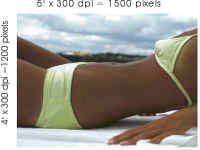 |
To convert from inches to pixels you multiply a length in inches times the pixels per inch. Here one side is 5 inches and the other is 4. To calculate the length of each side in pixels, you multiply those lengths by the number of dots per inch, in this case 300. |
When you make printouts from images, pixels begin to show when the print is enlarged to a point where the pixels per inch (ppi) fall too low. If your printer can print a sharp image only at 300 or more pixels per inch, you need to determine if the size of the image you plan on printing will fall below this level. When you enlarge or reduce an image like this, the ppi change. To find out what the pixels (or dots) per inch becomes, you convert from the image's original size in pixels to its pixels per inch. For example, if you scan a slide at 2700 ppi, your scanned image is about 3712 pixels wide (a slide is about 1.375" wide). If you then print that scanned image so it's 10" wide, the pixels are stretched over a larger area so the ppi on the print falls from 2700 ppi to 371 ppi (3712 pixels ÷ 10 inches = 371 pixels per inch). Also, if you know the size of the image in pixels, you can divide that number by the number of pixels you want to print per inch to determine the largest possible print size.
 |
| Here a slide is scanned at 2700 dpi. The resulting 3712 pixels are then spread across a 10-inch wide print. The dpi on the print are 371. |
Surprisingly, the number of pixels in an image doesn't by itself indicate sharpness, or even size. The same number of pixels can occupy a small or large area on the screen or printout. As they are spread over a larger area, the perceived sharpness falls (from the same viewing distance). Conversely, if they are squeezed into a smaller area, perceived sharpness increases. The images on high-resolution screens or printouts look sharper only because the available pixels are grouped into a much smaller area—not because there are more pixels. The smaller an image is displayed from a given file, the sharper it will appear. When enlarged too much, sharpness begins to fade and eventually the square pixels will begin to show—the image becomes pixilated.
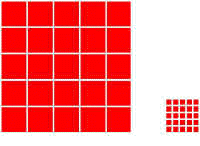 |
For sharpness to increase, pixel sizes must decrease. |
The final size of an image depends on the resolution of the output device. Imagine laying two tile floors, one with large tiles and one with small. The one with small tiles will have sharper curves and more detail. However, if you have the same number of large and small tiles, the area covered by the small tiles will be much less.
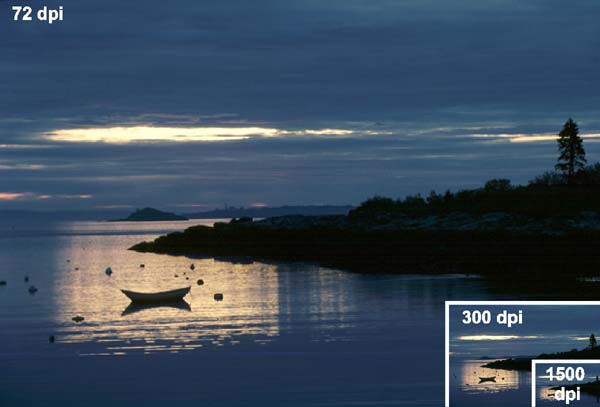 |
| This graphic shows how a 640 x 480 image displays or prints on devices with different dots per inch. At 72 ppi it's 8.9" x 6.7", at 300 ppi it's 2.1" by 1.6", and at 1500 ppi, it's only 0.43" x 0.32". |
You can see how this happens by studying the table below that lists a number of image resolutions found on Photo CD disks. An image with 768 x 512 pixels will just fit on the screen set to a resolution of 800 x 600. It will be displayed a little over 10 x 7 inches—about the size of a magazine page. That same image, printed on a 300 dpi printer shrinks to about 2.5 by 1.7 inches. On a 1500 dpi printer, the same image shrinks to a size smaller than a stamp.
| Original | 14" Screen @ 72 ppi | Printer 300 dpi | Printer 1500 dpi | ||||
| Width | Height | Width | Height | Width | Height | Width | Height |
| 192 | 128 | 2.67 | 1.78 | 0.64 | 0.43 | 0.13 | 0.09 |
| 384 | 256 | 5.33 | 3.56 | 1.28 | 0.85 | 0.26 | 0.17 |
| 768 | 512 | 10.67 | 7.11 | 2.56 | 1.71 | 0.51 | 0.34 |
| 1536 | 1024 | 21.33 | 14.22 | 5.12 | 3.41 | 1.02 | 0.68 |
| 3072 | 2048 | 42.67 | 28.44 | 10.24 | 6.83 | 2.05 | 1.37 |
| 6144 | 4096 | 85.33 | 56.89 | 20.48 | 13.65 | 4.10 | 2.73 |
To make an image larger or smaller for a given output device, it must be resized in a photo-editing program or by the application you're printing it with. Resizing is done by interpolation. When made larger, extra pixels are added and the color of each new pixel is determined by the colors of its neighbors. When made smaller, some pixels are deleted.
 |
To convert among pixels, inches, and dpi, you can download and unzip an Excel template. Just click the button and specify where on your system you want to save it. |